
Are you struggling with adding subtitles to your videos on Facebook?
If you have looked at Facebook recently you will have seen that any video with subtitles added will automatically show the subtitles before you click to watch the video.
This is a great way to get your viewers attention and entice them to watch your video.
You can use Facebook's subtitle assistant but if you have already created your subtitles for YouTube there is a much easier way. To make things super simple for you, you can either watch the video below or find a step by step guide underneath.
1. Upload your video to YouTube and add your subtitles like I showed you in the earlier video here.
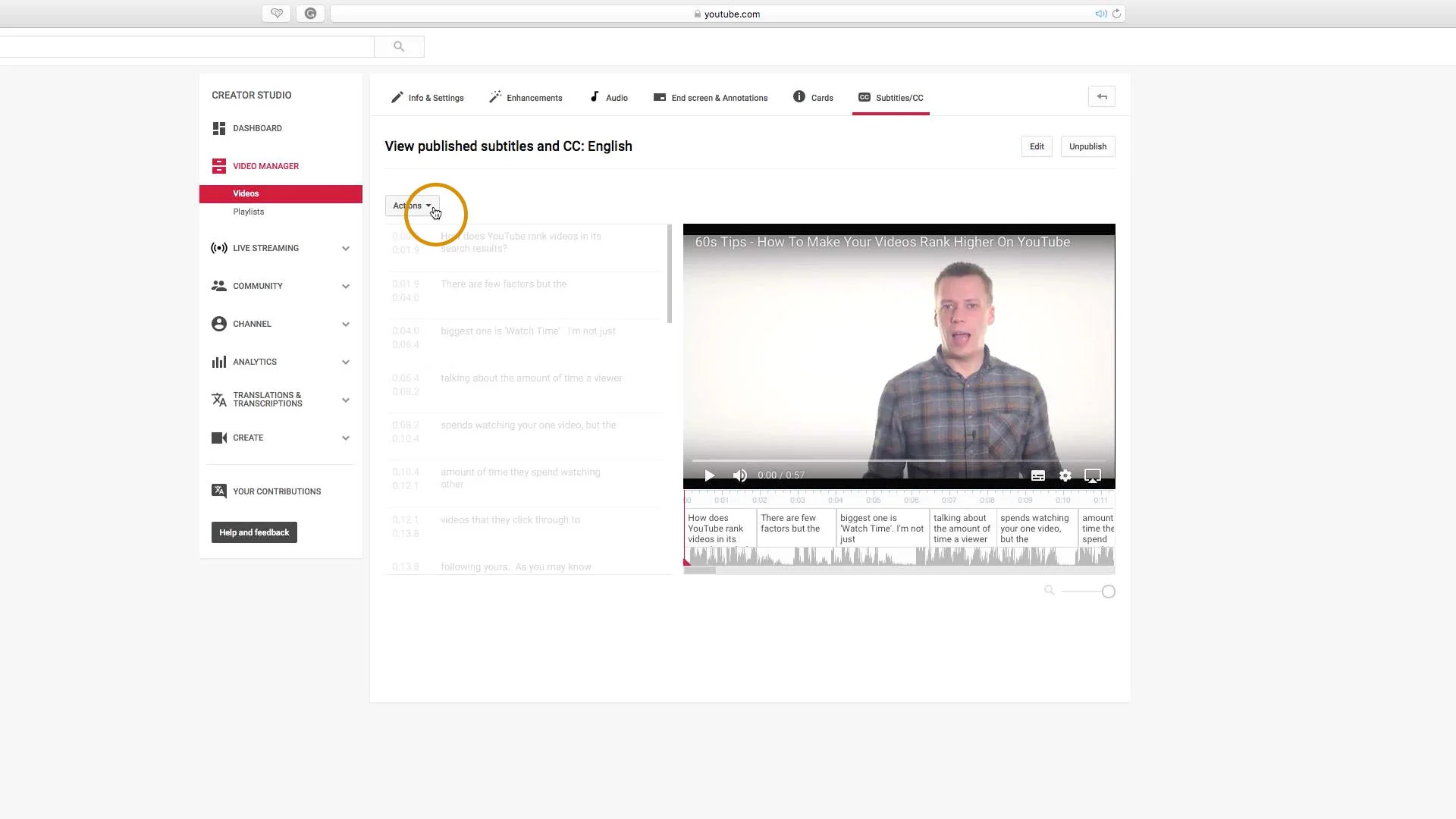
2. While you are still in the subtitle edit screen click on ‘Actions’.
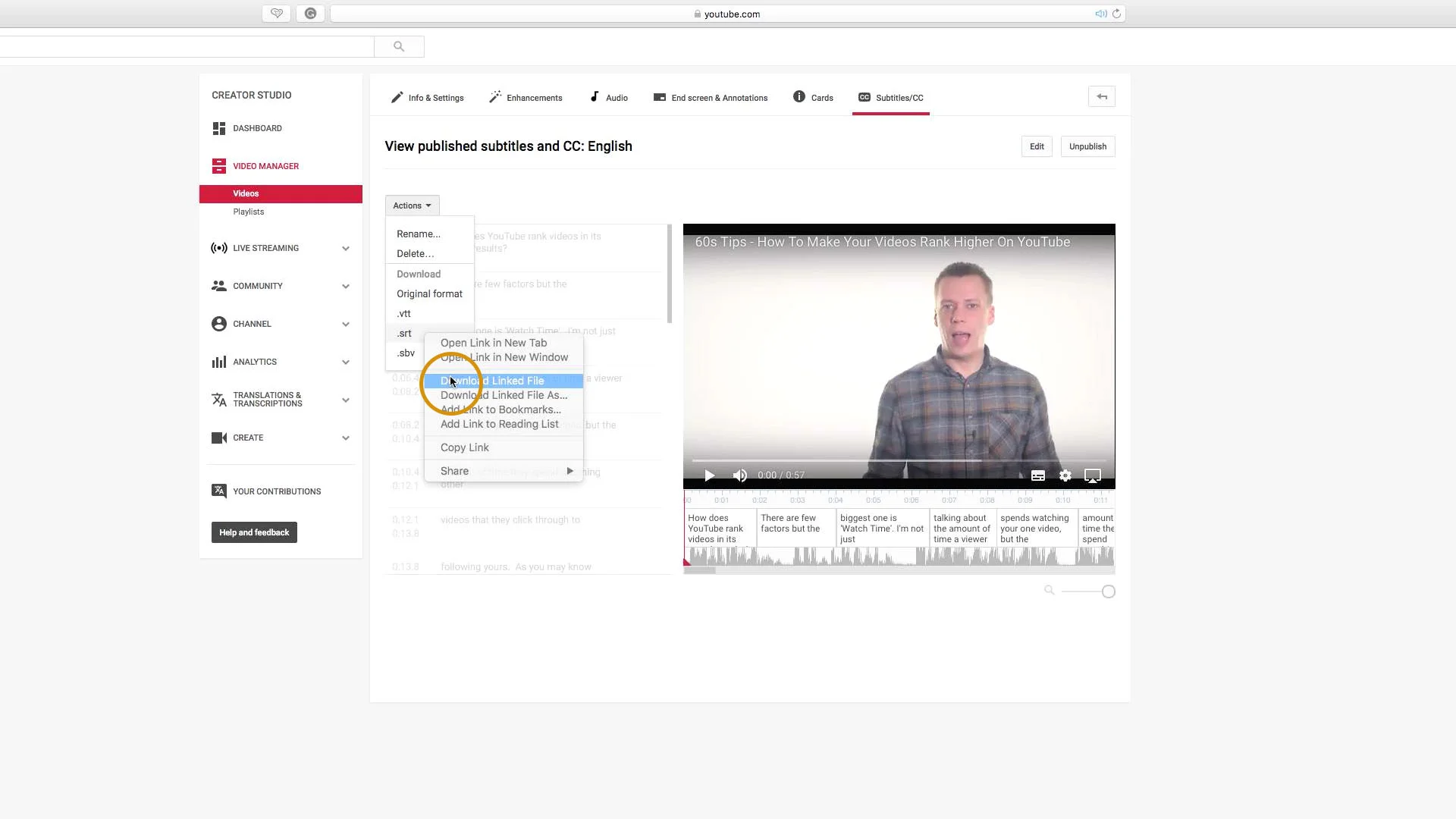
3. Right click on ‘.srt’ and select ‘Download Linked File’. I am working on a Mac so this may be different if you are on a PC.
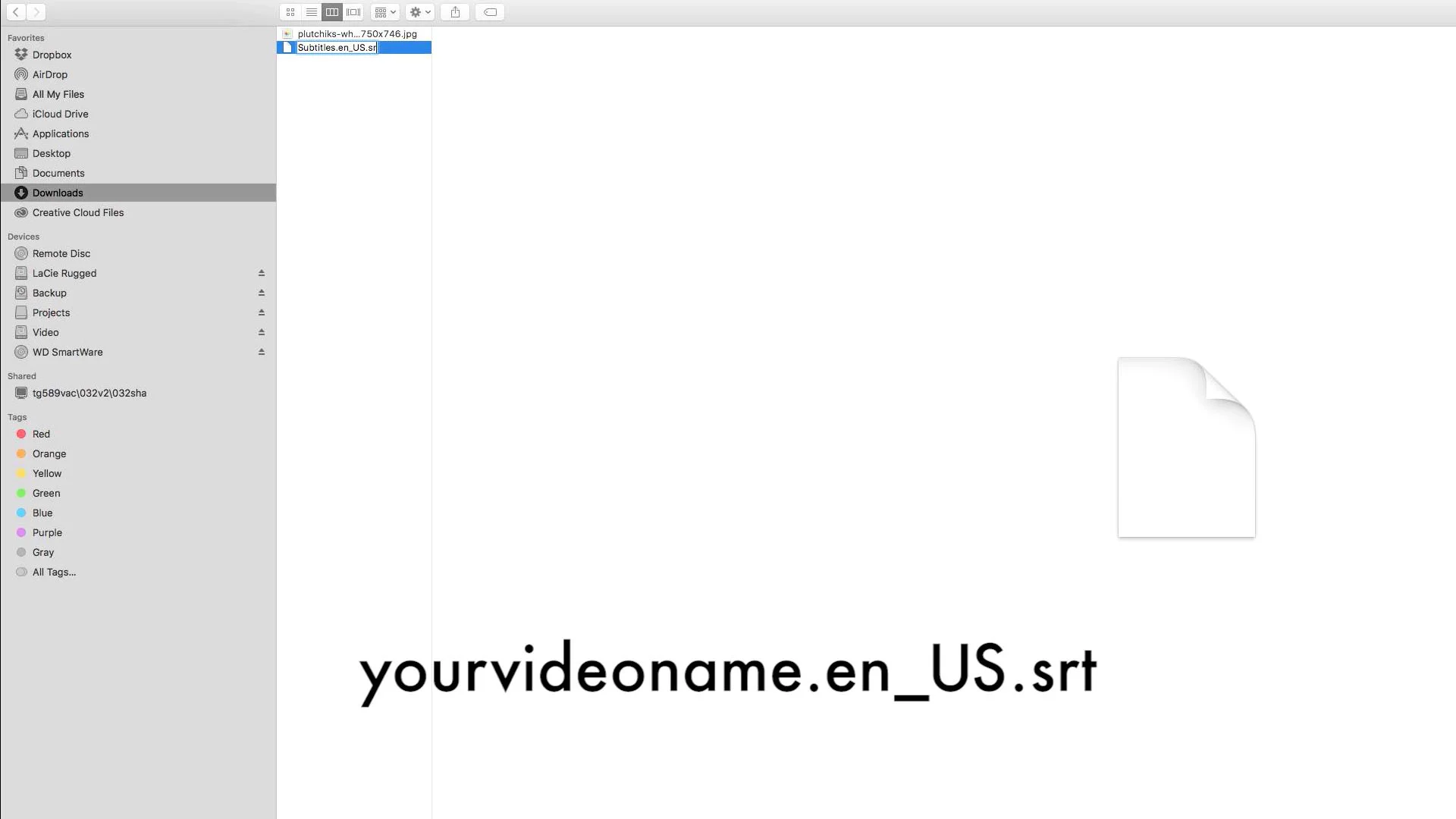
4. Go to your downloads folder and the file will be called ‘untitled’. You need to re-name the file as ‘yourvideoname.en_US.srt’. The important part is adding .en_US.srt on the end.
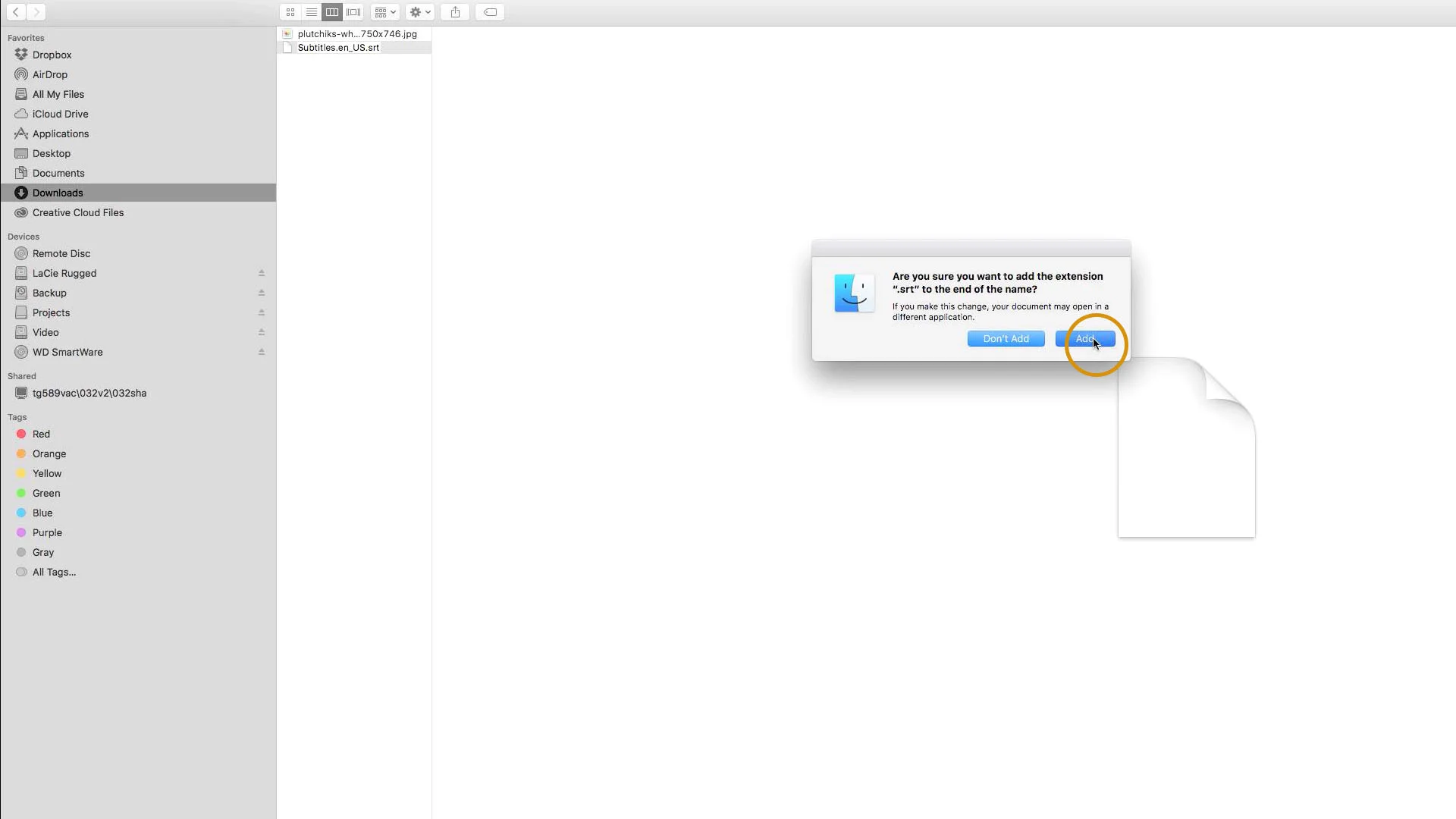
5. You will now be asked if you want to change the extension, which you will answer ‘yes’. Again the wording may be different on a PC.
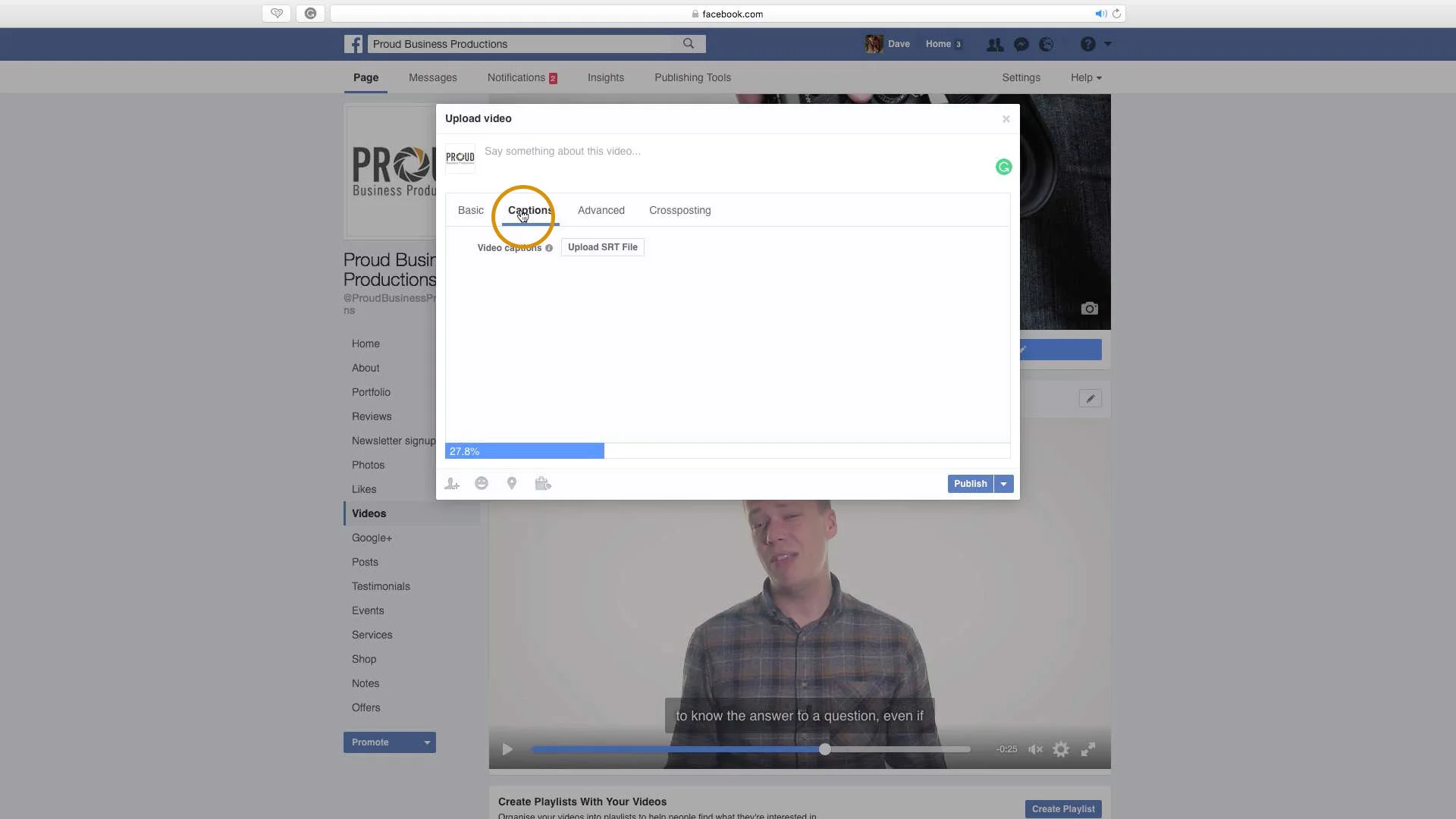
6. Now you have the file, upload your video to Facebook. Whilst your video is uploading click on the ‘Captions’ tab.
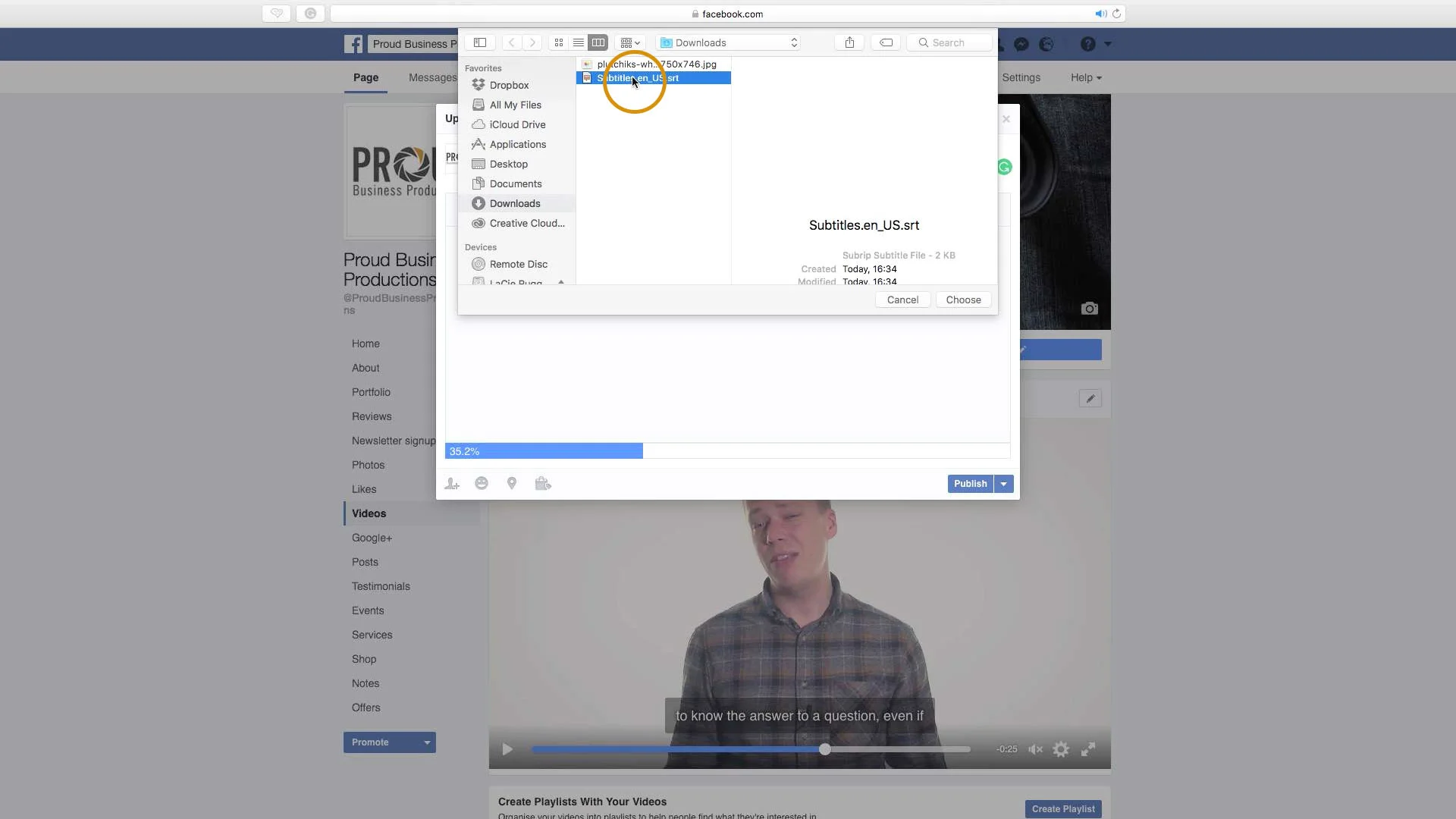
7. Click ‘upload SRT File’. Select your subtitles file that you just renamed.
And that’s it, you're done. It’s not the most straightforward process in the world but only adds on a couple of extra minutes compared to redoing the subtitles to the whole video.
If you are struggling with uploading your subtitles get in touch and I am sure I can help.
Thanks for reading.
David Proud
Video Producer
Proud Business Productions